1、打开powerpoint,进入其主界面;
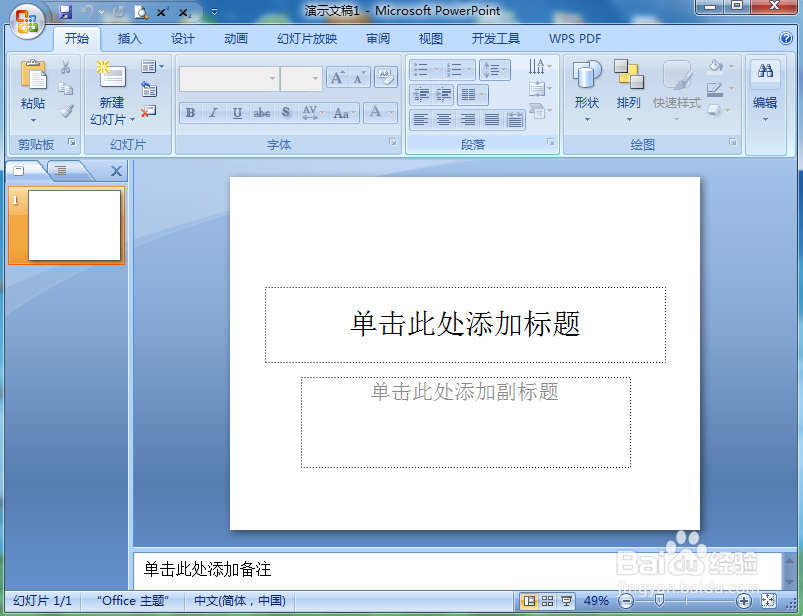
2、将单击此处添加标题和副标题两个输入框删除;

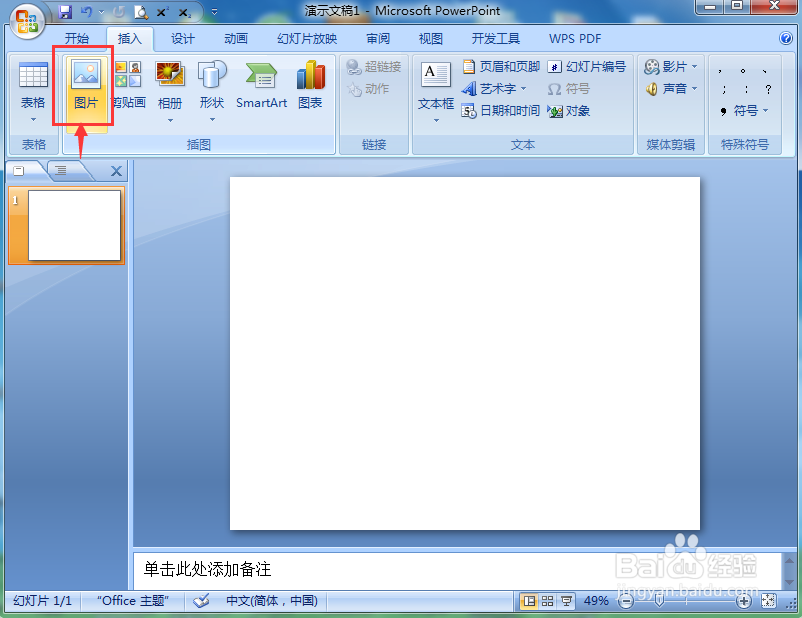
3、点击插入菜单,选择图片工具;
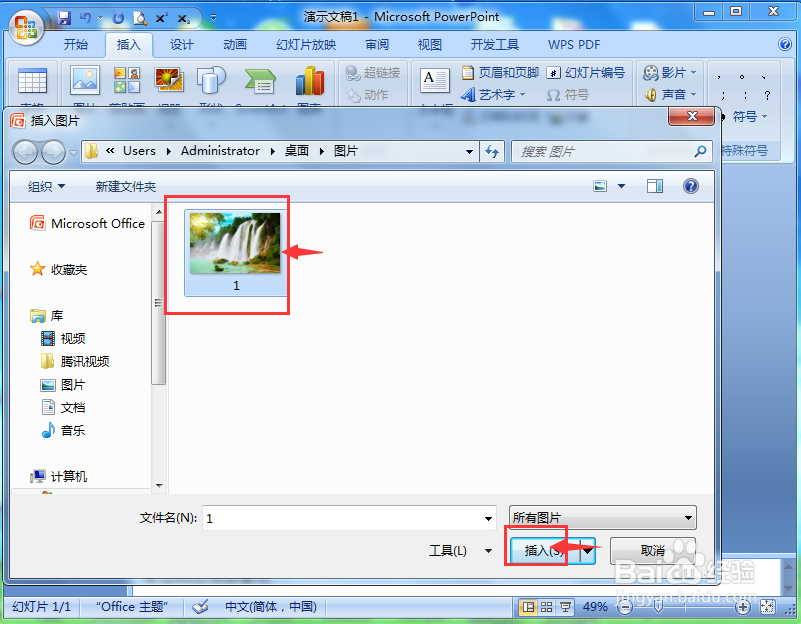
4、选中要处理的图片后,点击插入;
5、将图片插入到powerpoint中;
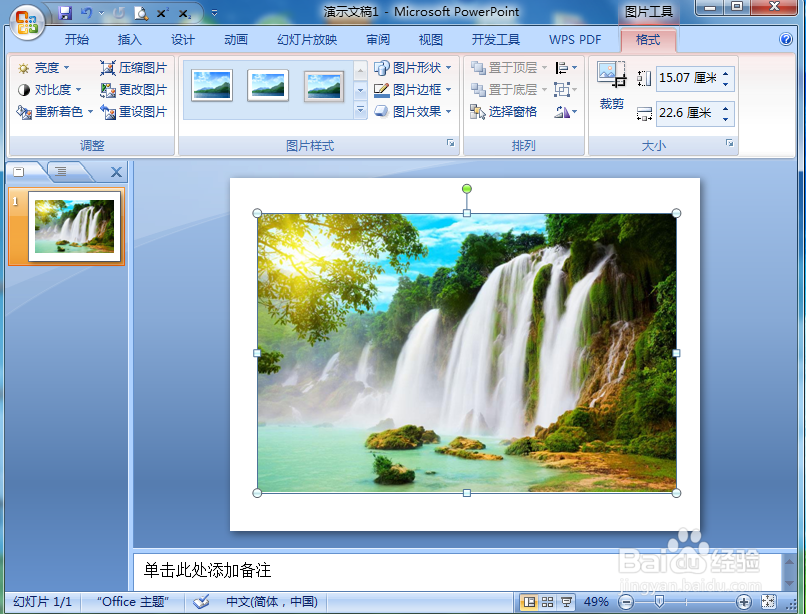
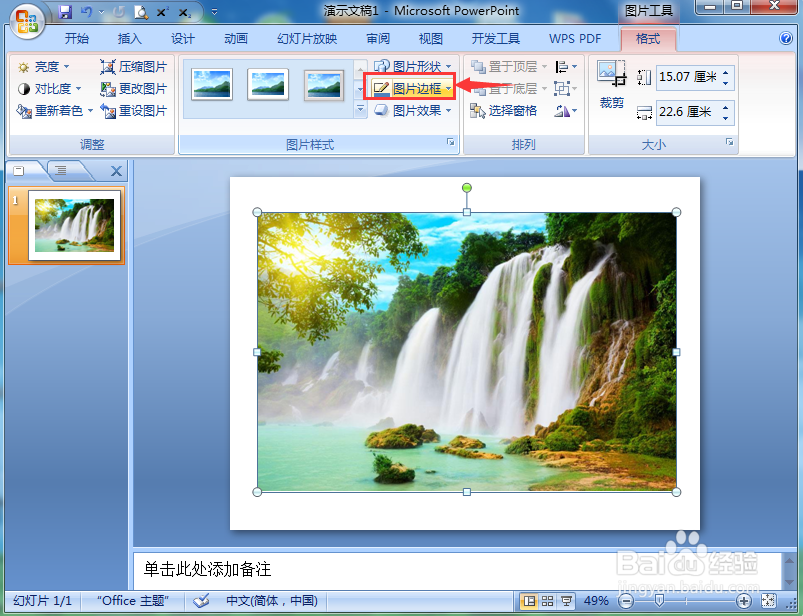
6、点击图片边框;
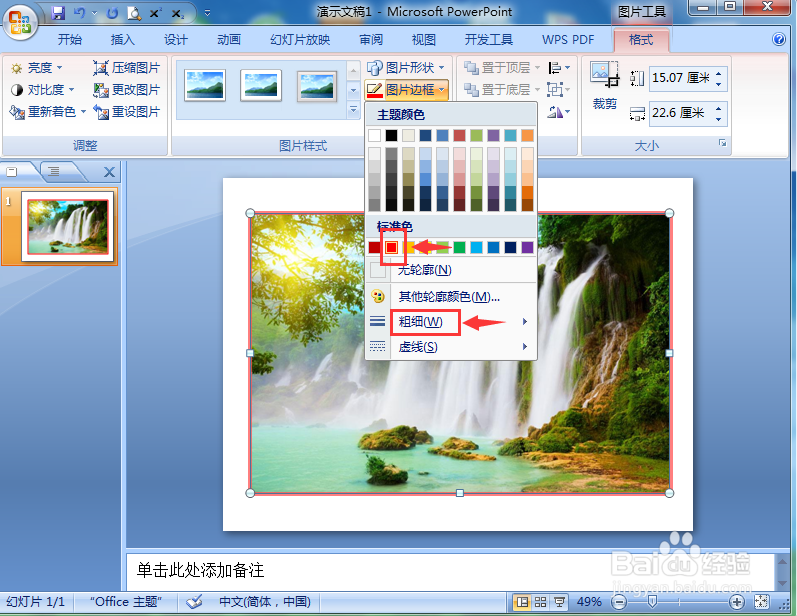
7、设置好边框的颜色和粗细;
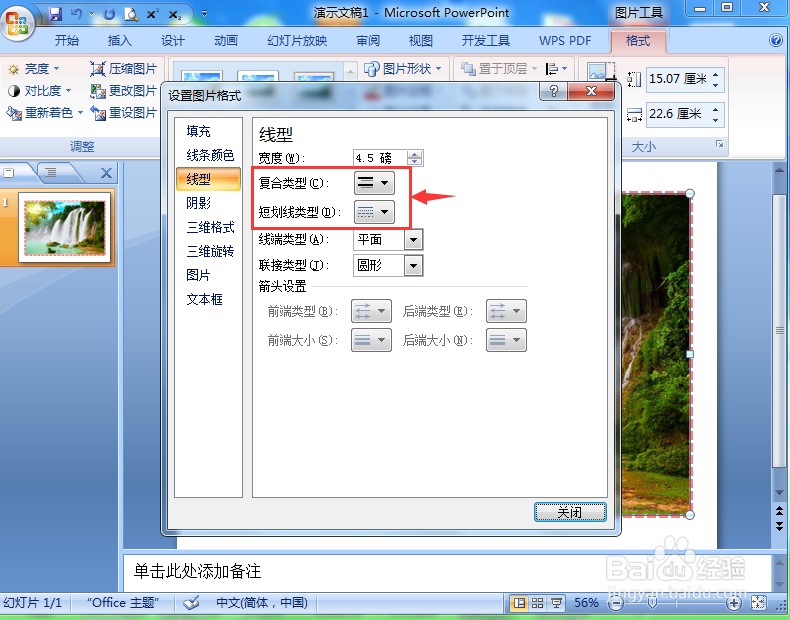
8、设置好需要的线型;
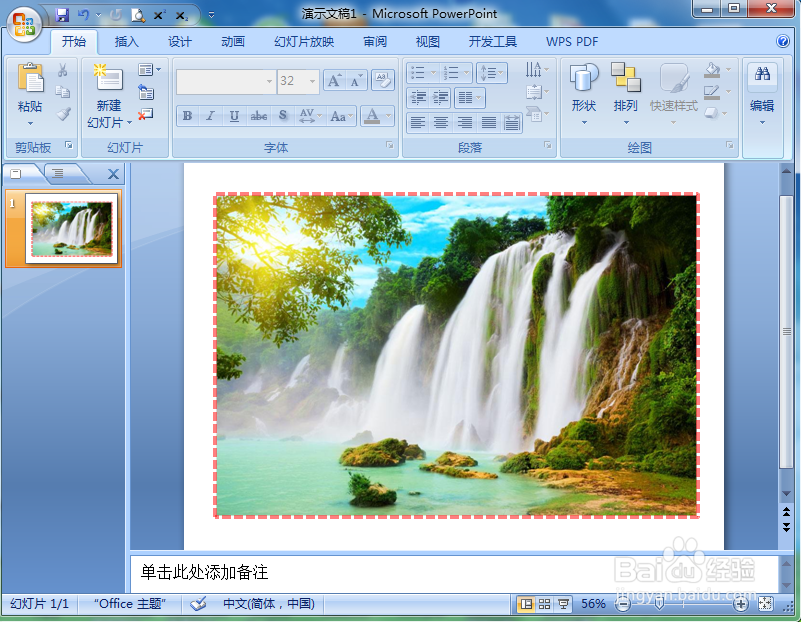
9、我们就在powerpoint中给图片添加上了边框。
1、打开powerpoint,点击插入,选择图片;
2、找到并选中要插入的图片,按插入,将它添加到PPT中;
3、点击图片边框,设置好边框的颜色、粗细和线型。
1、打开powerpoint,进入其主界面;
2、将单击此处添加标题和副标题两个输入框删除;
3、点击插入菜单,选择图片工具;
4、选中要处理的图片后,点击插入;
5、将图片插入到powerpoint中;
6、点击图片边框;
7、设置好边框的颜色和粗细;
8、设置好需要的线型;
9、我们就在powerpoint中给图片添加上了边框。
1、打开powerpoint,点击插入,选择图片;
2、找到并选中要插入的图片,按插入,将它添加到PPT中;
3、点击图片边框,设置好边框的颜色、粗细和线型。